The audit log is a running record of everything that happens in your VuePilot account. When someone edits a rotation, changes an app, takes over a screen or gets their password wrong, it’s written down with who did it, when, and where they were signing in from.
There’s nothing to switch on. Every account records its activity automatically, including changes made through the API, and entries are kept for six months. Account admins can open it from Audit Log in the dashboard sidebar. Other members of the account can’t see it.
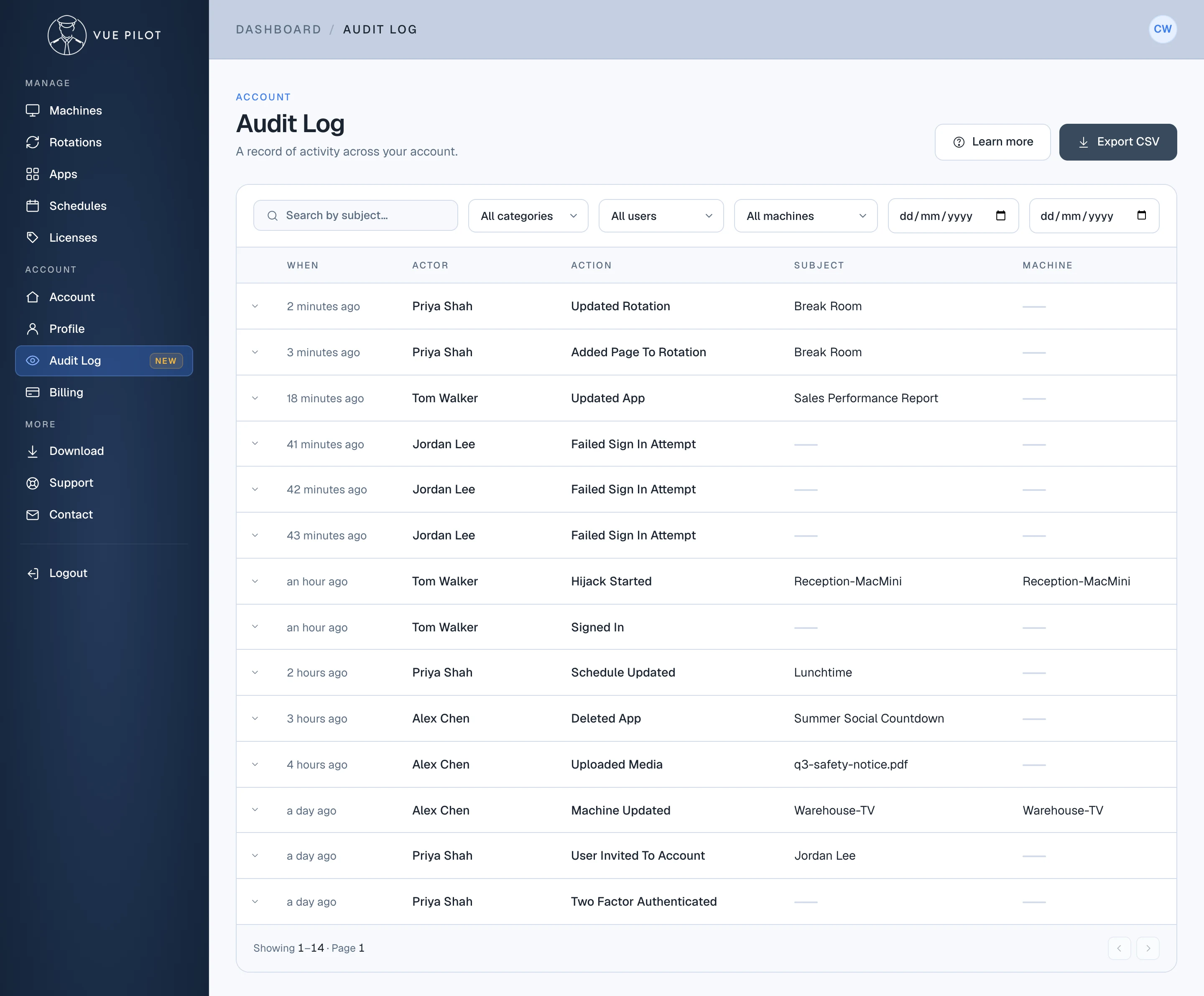
- 1 Export CSV Download every entry that matches your filters, for your records or a security review.
- 2 Filters Narrow the log by name, category, person, machine or date range.
- 3 Failed sign ins Three wrong passwords for Jordan in three minutes. Worth a closer look.
- 4 Screen commands Hijacks and other remote commands show the machine they were sent to.
- 5 Deleted items The log keeps the name of anything that's since been deleted, so you can still see what it was.
What gets recorded
Each entry shows when it happened, who did it, what they did and what it was done to, plus the machine and IP address where they apply. Things VuePilot does on its own, like a machine going offline, are shown as System.
- Rotations and their items: rotations created, changed or deleted, and items added, edited or removed.
- Apps: created, changed, copied or deleted.
- Schedules and media: schedules created, changed or deleted, and files uploaded or deleted.
- Machines: activated, deactivated, renamed or deleted, plus remote commands like start, stop and pause, hijacks, and commands sent to a whole group.
- Your team and account: people invited or removed, admin rights changed, ownership transferred, account settings changed, and sub accounts created or deleted.
- Sign ins: successful and failed sign ins, two factor codes entered correctly or wrongly, and Google or Microsoft accounts connected or disconnected.
- Licenses and billing: trials started, licenses added and subscription changes.
Spotting failed sign ins
When someone enters the wrong password for one of your team’s email addresses, the attempt is logged against that person along with the IP address it came from. Wrong two factor codes are logged the same way. If a teammate belongs to more than one VuePilot account, the attempt is recorded in the account they last used. Attempts with an email address that isn’t on any account aren’t recorded.
One failed attempt is usually just a typo. Several in a row, especially from an IP address you don’t recognise, are worth a closer look. Set the category filter to Security to see only sign in activity, then click an entry for the details.
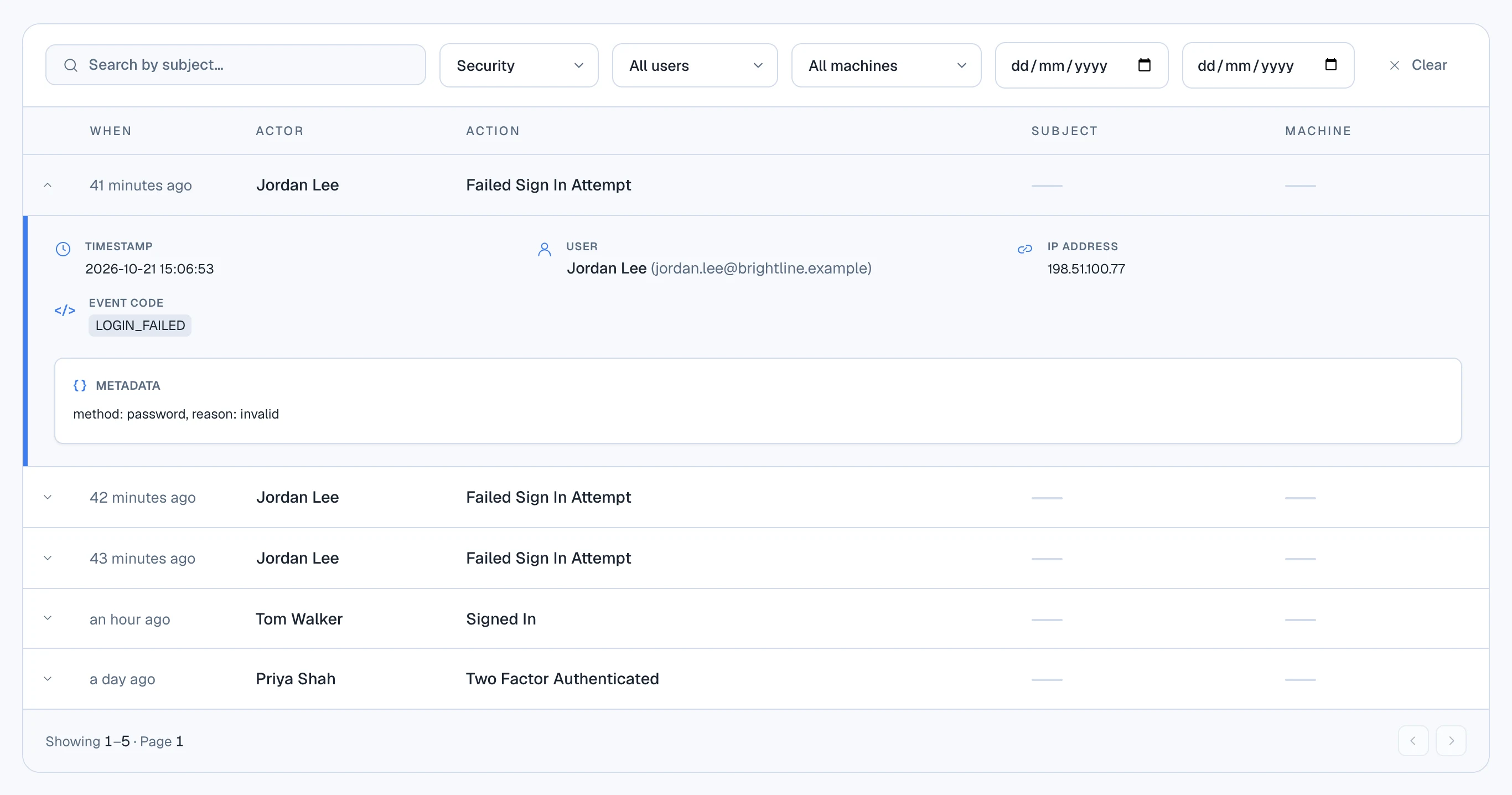
- 1 Security category Shows sign ins, two factor attempts and connected account changes only.
- 2 User Whose account the attempt was made against.
- 3 IP address Where the attempt came from. This one isn't the office.
- 4 Metadata Extra detail. Here, a password sign in that failed because the password was wrong.
If the attempts weren’t the person themselves, ask them to change their password. For extra protection, turn on Require SSO for them on the Account page, so they can only sign in with their Google or Microsoft account.
Filtering and exporting
The search box finds entries by the name of the rotation, app, schedule or machine they relate to, even if it’s since been deleted. Combine it with the category, person, machine and date filters to answer questions like “who changed the reception screen last week?”
Export CSV downloads every entry that matches your current filters, up to 50,000 at a time. The file includes the full timestamp in UTC, the person’s name and email, the IP address and any extra details, ready for a spreadsheet or a security review.
Tips
- Give everyone their own login rather than sharing one. The audit log can only tell you who made a change if each person signs in as themselves.
- When a screen shows something unexpected, filter by its machine to see who last hijacked it or changed what it plays.
- Export the log regularly if you need to keep records for longer than six months.