An app is a ready made screen you set up in the dashboard. Instead of finding a web page that shows what you want, you fill in a few settings, like a time zone, a link to a PDF or a Power BI report, and VuePilot builds a full screen display designed to be read from across the room.
Every app you create is saved to your Apps library. From there you can add it to as many rotations as you like, and when you edit the app, every screen showing it picks up the change.
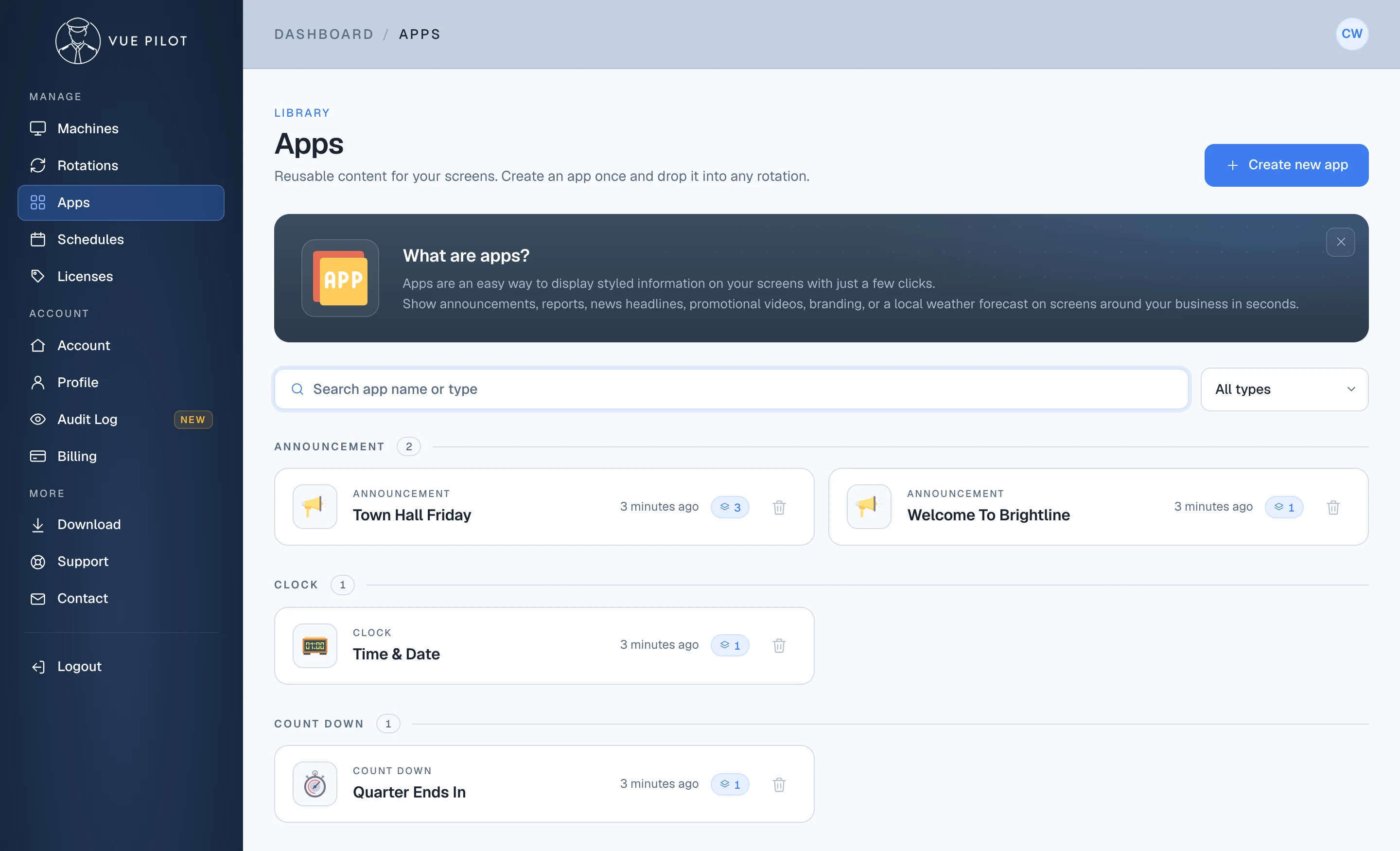
- 1 Create new app Choose an app type, fill in its settings and save it to your library.
- 2 Search and filter Find an app by name, or narrow the list to one type.
- 3 Rotation count How many rotations are using the app right now.
- 4 Your apps Grouped by type. Click one to change its settings or add it to a rotation.
Apps or web pages?
A rotation can show any web page, so you don’t always need an app. If the content already lives online, like a status page or a public dashboard, add its address straight to the rotation. Use an app when you want VuePilot to build the screen for you, or when the content needs special handling, such as signing in to Microsoft for a Power BI report.
Example: a clock
The Clock app shows a large wall clock with the date. Pick a time zone, or leave it on System to use the device’s own time, choose 12 or 24 hour time, and set a background colour or image from the media manager or image search. The live preview updates as you change each setting, so you see exactly what will appear on screen before you save.
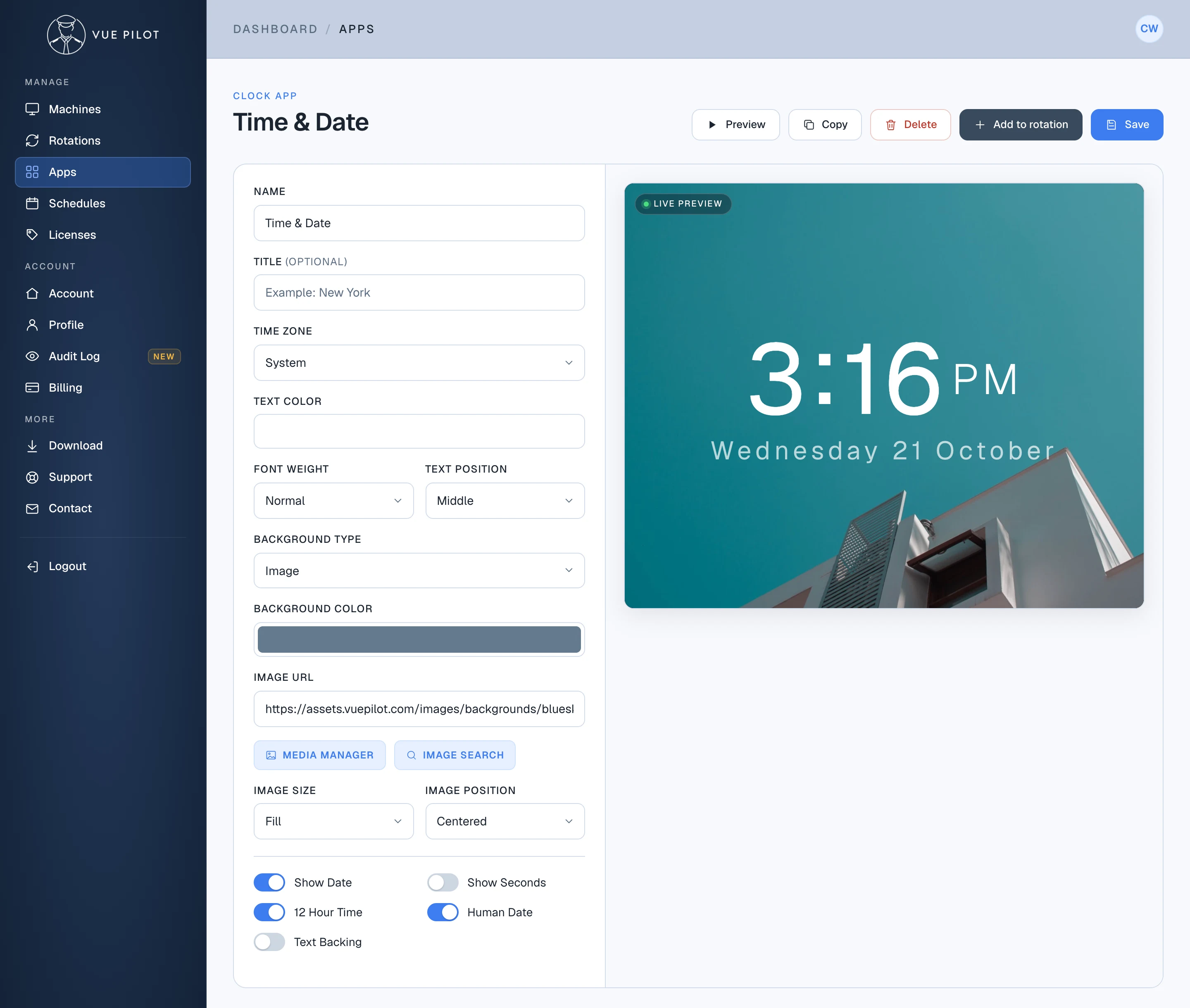
- 1 Settings Name the app, then set the time zone, colours, background and what to show.
- 2 Live preview Updates as you edit, so there are no surprises on screen.
- 3 Preview See a larger preview of the app before it goes on screen.
- 4 Add to rotation Pick the rotations this app should appear in.
- 5 Save Saves your changes to every rotation using the app.
Example: a PDF slideshow
The PDF app turns a document into a slideshow, which is handy for menus, onboarding decks, safety notices and monthly reports. Upload the file with the media manager or paste a link to it, then choose how long each page stays on screen, which page to start on, the transition speed, and whether pages fit the height or width of the screen. Turn off Slide Show to keep a single page on screen instead.
Microsoft Power BI reports and dashboards
Your Power BI reports are only useful if people see them. The Power BI app puts your sales figures, KPIs and operational dashboards on screens around the office, so everyone can keep an eye on the numbers without opening a laptop. Create one app per report or dashboard and it rotates alongside everything else, or use hijack to put it on screen straight away for a meeting.
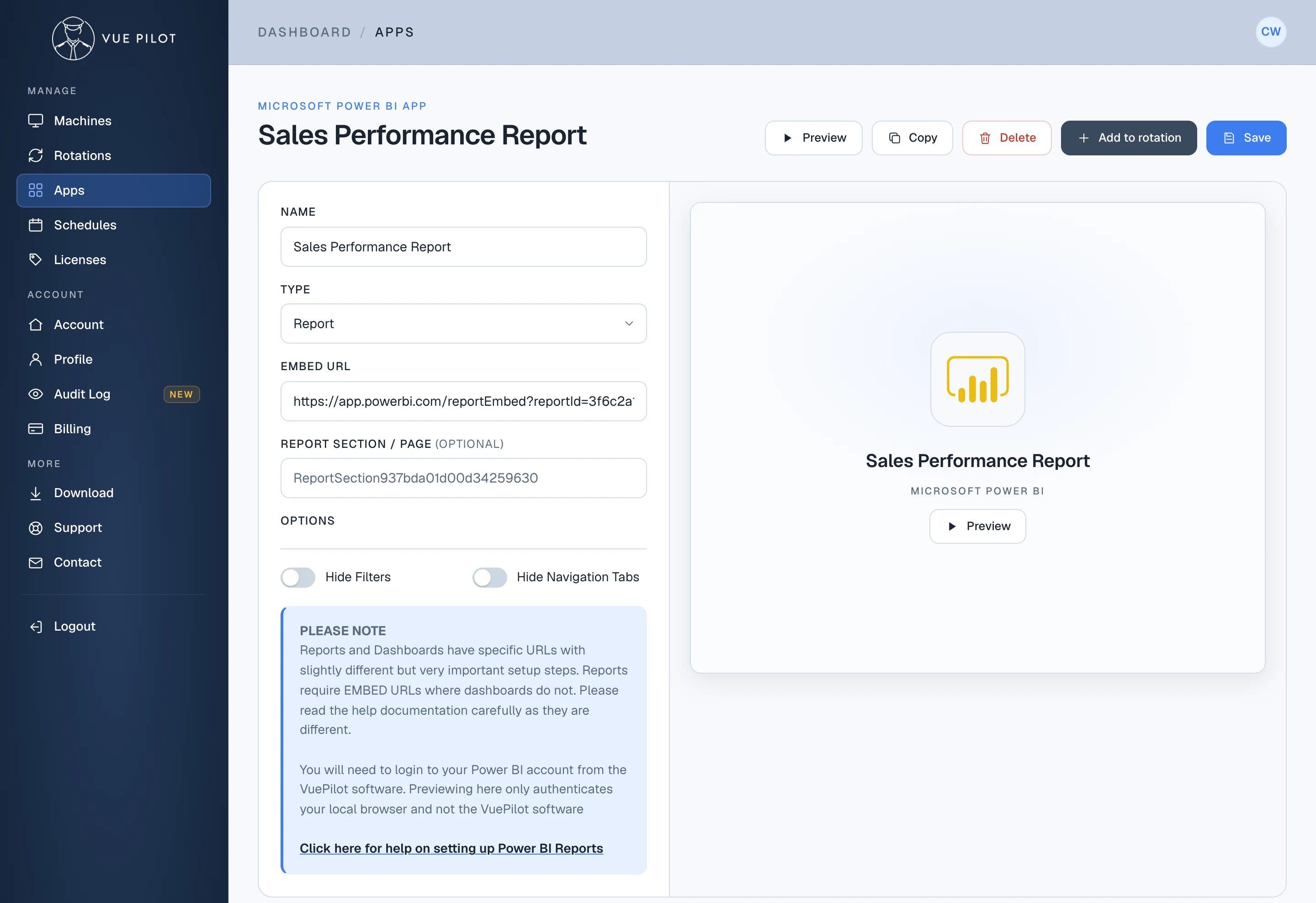
- 1 Report or dashboard They use different links, so choose the type that matches yours.
- 2 Embed URL For a report, in Power BI choose File, Embed report, then Website or portal, and copy the link.
- 3 Report page Optional. Paste the ReportSection value from the Power BI address bar to open a specific page.
- 4 Filters and navigation Show the filters pane or page tabs if people will interact with the report.
- 5 Sign in on each screen Previewing here only signs in your browser. Each player signs in once, as below.
Signing in on each screen
Power BI remembers your sign-in on the device itself, so each player needs to sign in once:
- In the VuePilot player on the device, open Rotations and click Preview on the Power BI row.
- Sign in with your Microsoft account in the window that opens.
- When asked whether to stay signed in, choose Yes and tick “Don’t show this again”, so the screen stays signed in.
- Close the window once the report appears. The player now shows it as part of its rotation.
Dashboards also have Fit To Screen and Fit To Width options. For the full setup, including filtering data through the URL and what to do if screens sign out too often, read the Power BI support guide.
More apps
There are apps for weather, world clocks, announcements, breaking news, RSS feeds, image slideshows, tables and timetables, count down and count up timers, YouTube and video, Microsoft Office 365 documents, guest Wi-Fi details and more. Browse them all in the apps library.