A rotation is a playlist for your screens. It’s an ordered list of items, and each one stays on screen for the number of seconds you choose before the next one takes over. When the last item finishes, the rotation starts again from the top, so your screens keep cycling without anyone touching them.
An item can be any web page or dashboard you can open in a browser, or one of VuePilot’s built-in apps, such as weather, world clocks, news, announcements, slideshows and tables.
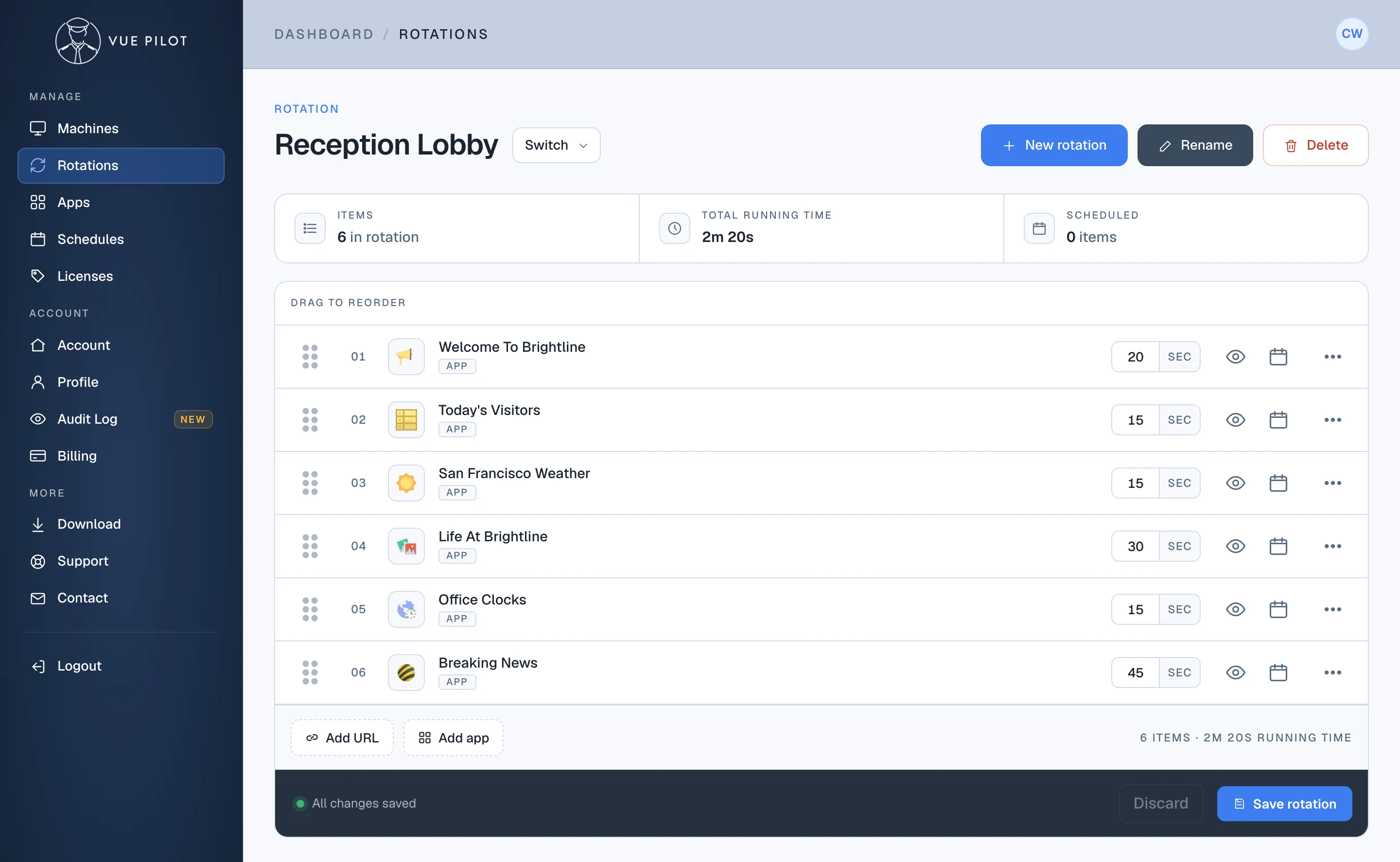
- 1 Rotation summary How many items are in the rotation, how long one full cycle takes, and how many items are scheduled.
- 2 Items Each row is one item, played in order from top to bottom. Drag the handle to reorder them.
- 3 Display time How many seconds the item stays on screen before the next one starts.
- 4 Preview, schedule and more Preview the item, limit it to certain days and times, or disable, edit and delete it.
- 5 Add URL or app Add any web address, or pick one of the apps you've set up.
- 6 Save rotation Your changes are kept as a draft until you save.
Putting a rotation on screen
Rotations are assigned on the Machines page. Each display connected to a machine plays its own rotation, so a single machine can show your reception rotation on one screen and your sales figures on another. From there you can start, stop and pause a rotation remotely, or use hijack to put one app or web page on screen straight away.
The same rotation can play on as many screens as you like, and an app can appear in more than one rotation. Update the app once and every rotation using it shows the change.
Tips for good rotations
- Create one rotation per place or audience, like Reception Lobby or Sales Floor, rather than one long list for everything.
- Give dashboards and reports longer display times than quick announcements, so people have time to read them.
- Use schedules for anything that should only appear at certain times, like a lunch menu or an after hours message.