A schedule controls when an item in a rotation is allowed to play. Without one, every item plays all day, every day. Add a schedule and the item only appears during the times you choose, then drops out of the rotation until its time comes around again.
Use them for anything that only matters at certain times: a lunch menu over lunch, a visitor list during business hours, a town hall reminder on Friday afternoon, or a countdown that only runs at the end of the quarter. Your screens keep up on their own, so nobody has to remember to change them.
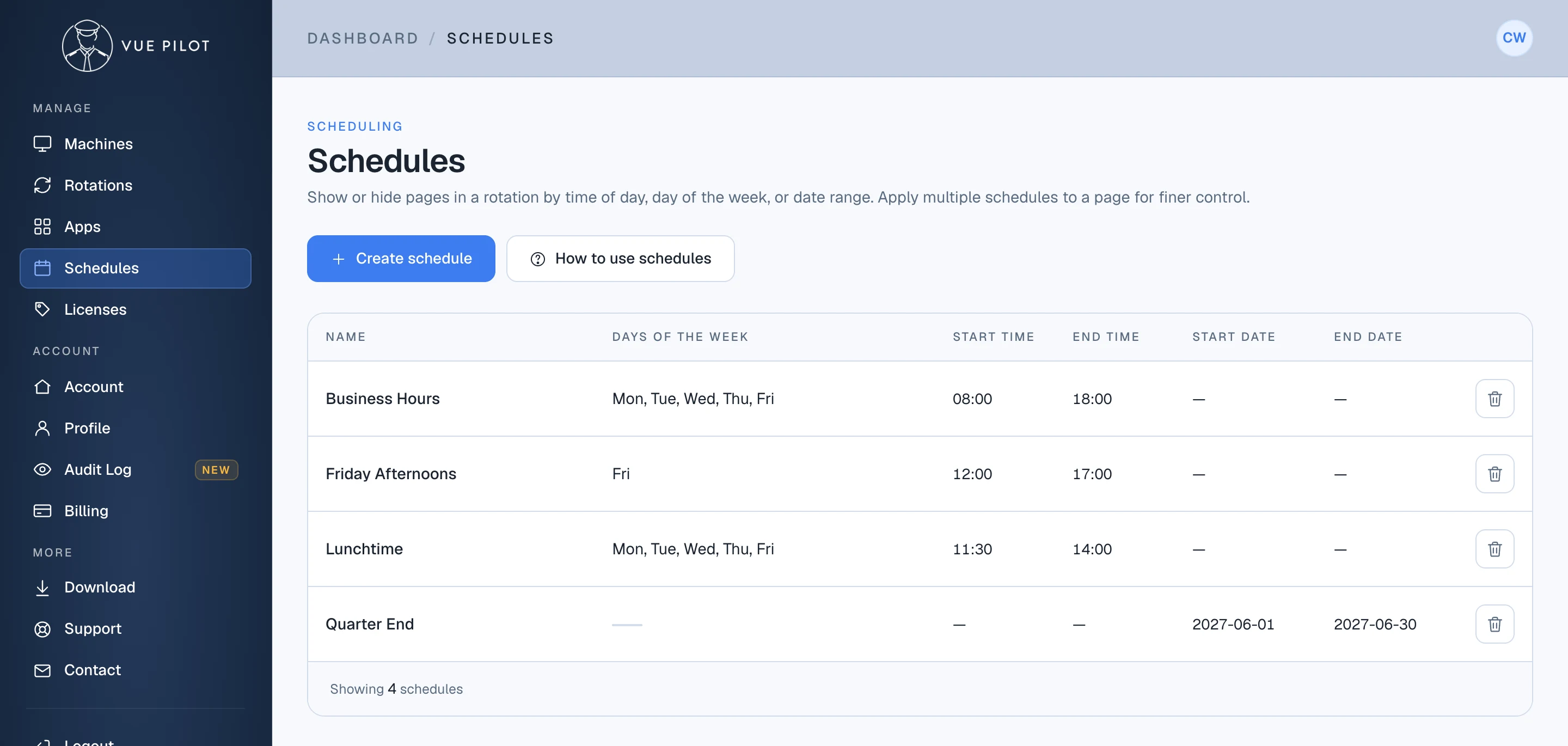
- 1 Create schedule Set up a new schedule. You can reuse it on as many items as you like.
- 2 Days and times Lunchtime runs Monday to Friday, between 11:30 and 14:00.
- 3 Date range Quarter End runs from 1 to 30 June 2027, at any time of day.
Setting up a schedule
Give the schedule a name you’ll recognise later, then fill in only the parts you need. Anything you leave empty isn’t restricted, so a schedule with only days selected runs all day on those days, and one with only dates runs around the clock between them.
Times are always local to the screen. They follow the clock on the machine the VuePilot player is running on, not your own time zone or the dashboard’s. A schedule that starts at 8am plays at 8am wherever the screen is, so one Business Hours schedule works for your offices in London, New York and Sydney alike.
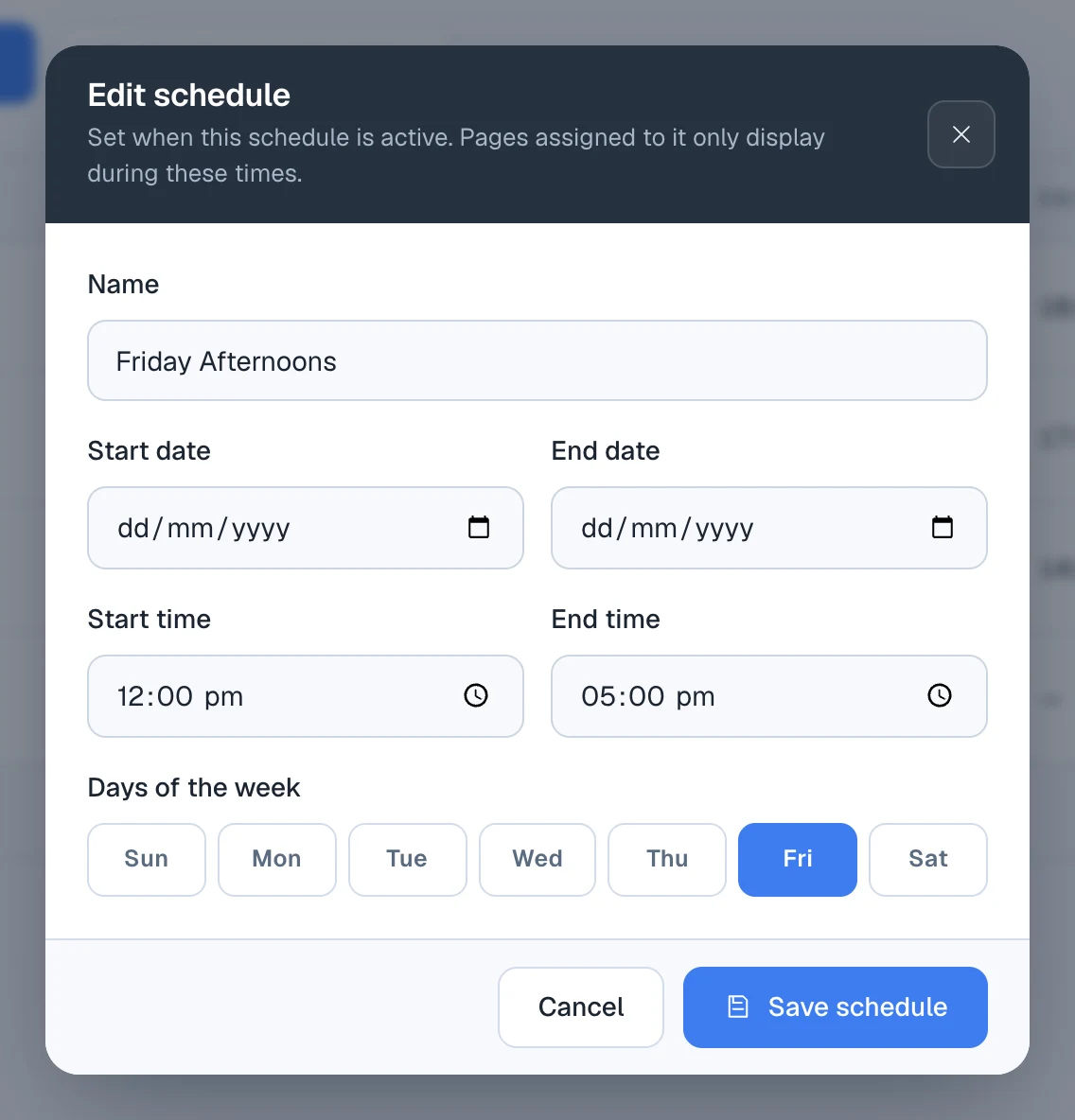
- 1 Dates Optional. Limit the schedule to a date range, like a campaign or a holiday period.
- 2 Times Optional. The part of the day when items can play, in each screen's local time.
- 3 Days of the week Optional. Leave them all unselected to run every day.
Adding a schedule to an item
Schedules are attached to individual items in a rotation, not to the whole rotation. In the rotation editor, click the calendar icon on an item and add one or more schedules from your list. The change saves straight away. New items need the rotation saved once before you can schedule them.
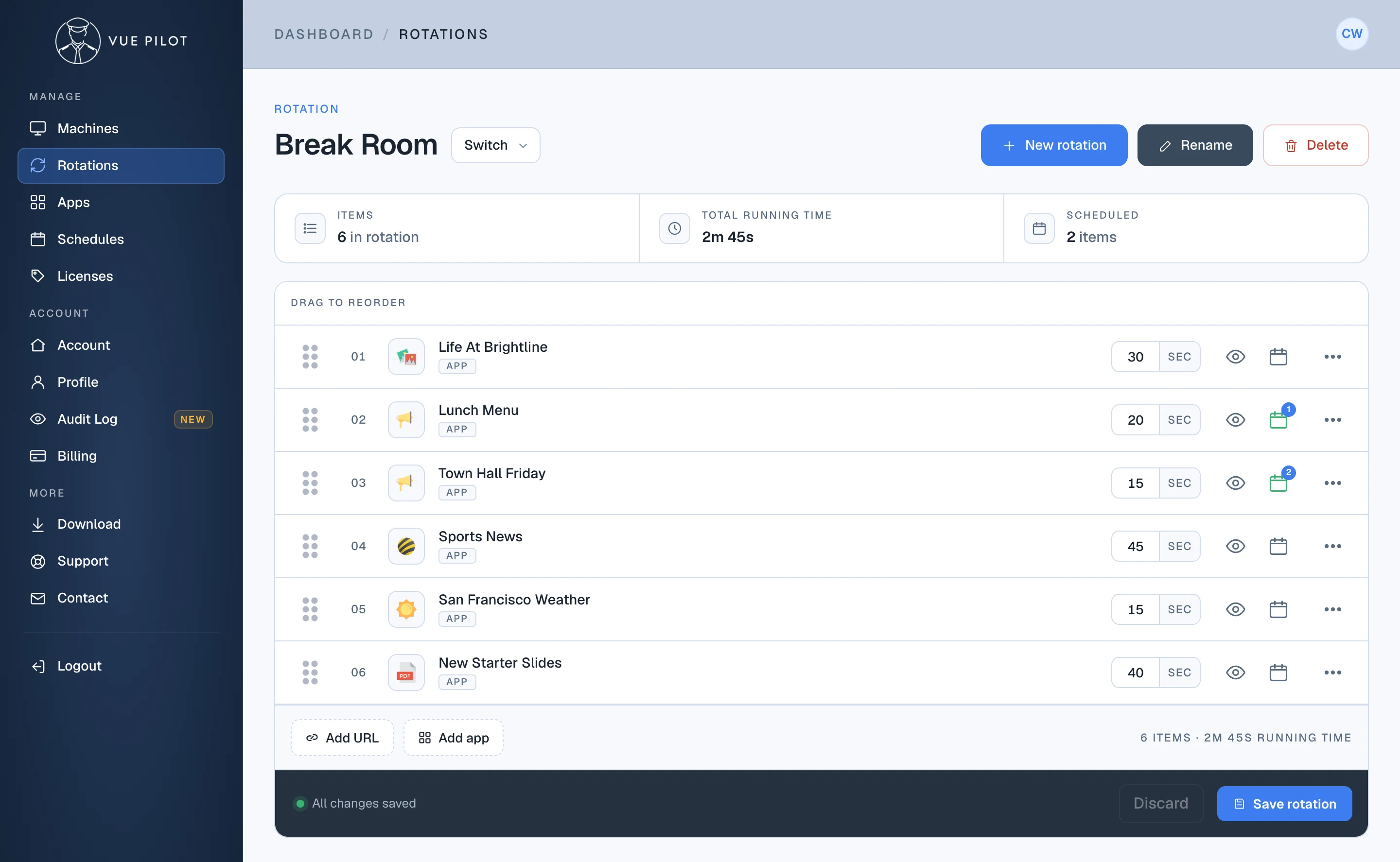
- 1 Scheduled items How many items in this rotation have a schedule.
- 2 Calendar icon Turns green on scheduled items, with a count of their schedules. Click it to add or remove them.
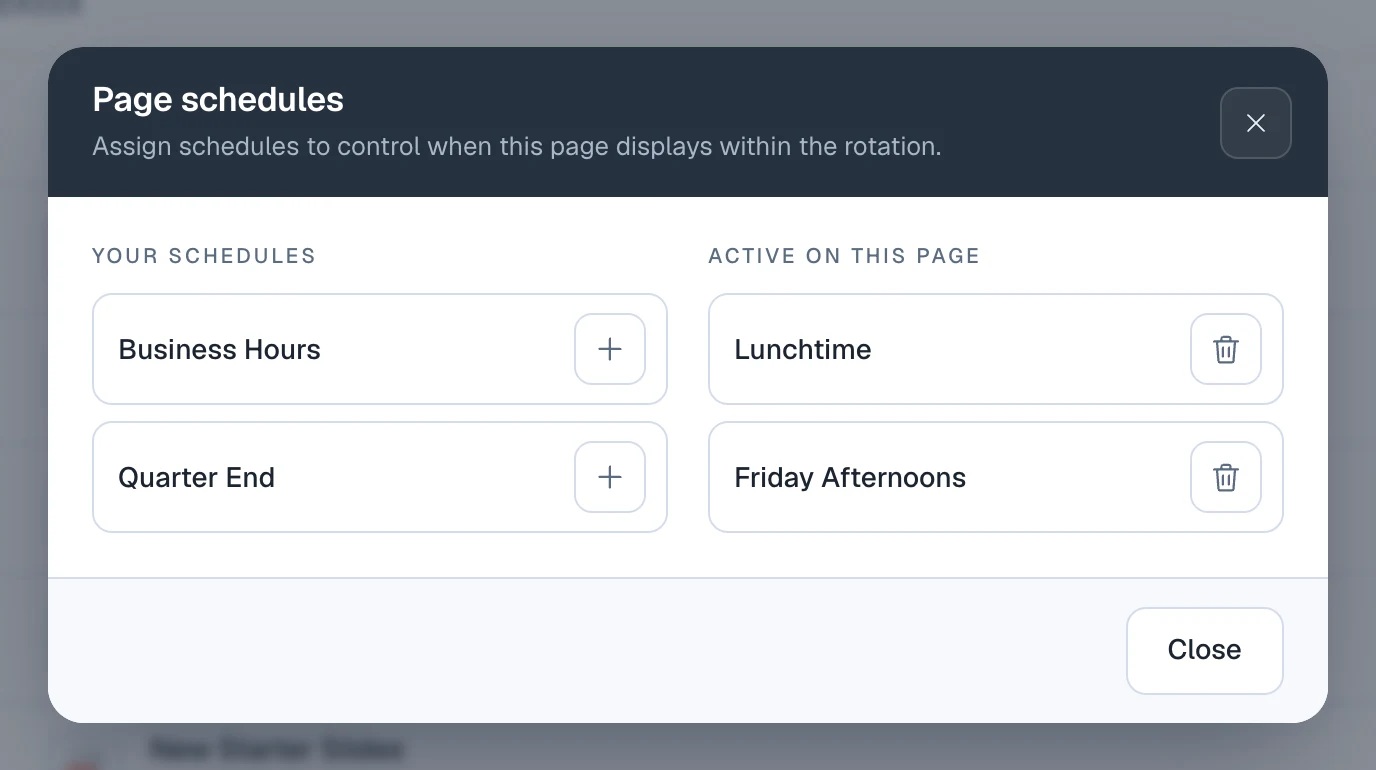
- 1 Your schedules Every schedule in your account. Click the plus to add one to this item.
- 2 Active on this page The item plays whenever any one of these is active.
How schedules decide what plays
- Items without a schedule always play.
- An item with more than one schedule plays when any of them is active. Town Hall Friday above shows on Friday afternoons and every weekday lunchtime.
- Start and end dates are inclusive, so a schedule ending on 30 June still runs all day on the 30th.
- A time window can run overnight. Set a start time later than the end time, like 22:00 to 06:00, and the item plays from 10pm through to 6am the next morning.
- Each screen checks schedules against its own local time, so the same schedule runs at 8am in London and again at 8am in Sydney.
- One schedule can be shared by many items across different rotations. Edit it once and every item using it follows the new times.
Tips
- Name schedules after when they run, like Weekday Mornings or After Hours, so they’re easy to pick from the list later.
- Keep a few items in each rotation unscheduled. If nothing in a rotation is in its schedule, the screen shows the VuePilot logo until something is.