One VuePilot player can run more than one screen. Plug two or more screens into the same computer and VuePilot treats each one as its own display, with its own rotation. A single machine on the sales floor can show the sales leaderboard on one TV and the engineering team’s dashboards on the TV beside it.
One license covers every screen
VuePilot is licensed per machine, not per screen. Every screen connected directly to a licensed machine is included at no extra cost, so a computer driving three screens needs one license, not three. You only need another license when you add another machine.
That makes a screen wall or a row of TVs along a corridor cheaper to run, with fewer devices to set up, power and look after.
What you need
- A computer running the VuePilot player for Windows, Mac, Linux or Raspberry Pi, with a video output for each screen. HDMI, DisplayPort and USB-C adapters all work.
- The screens set to extend the desktop in the computer’s display settings, not mirror it. Mirrored screens count as a single display.
Players on TV devices like Google TV and Fire TV show content on the one screen they’re plugged into.
Assigning a rotation to each screen
- Connect the screens to the machine. The player detects each one automatically.
- In the dashboard, open Machines and click the machine. It needs to be online to change its screens.
- Under Display management, give each screen a description so you can tell them apart, like Sales Team Screen. Click the pin next to a screen’s ID to show that ID on the screen itself.
- Choose a rotation for each screen under Set rotation.
- Click Save display config. The machine restarts its rotations with the new setup straight away.
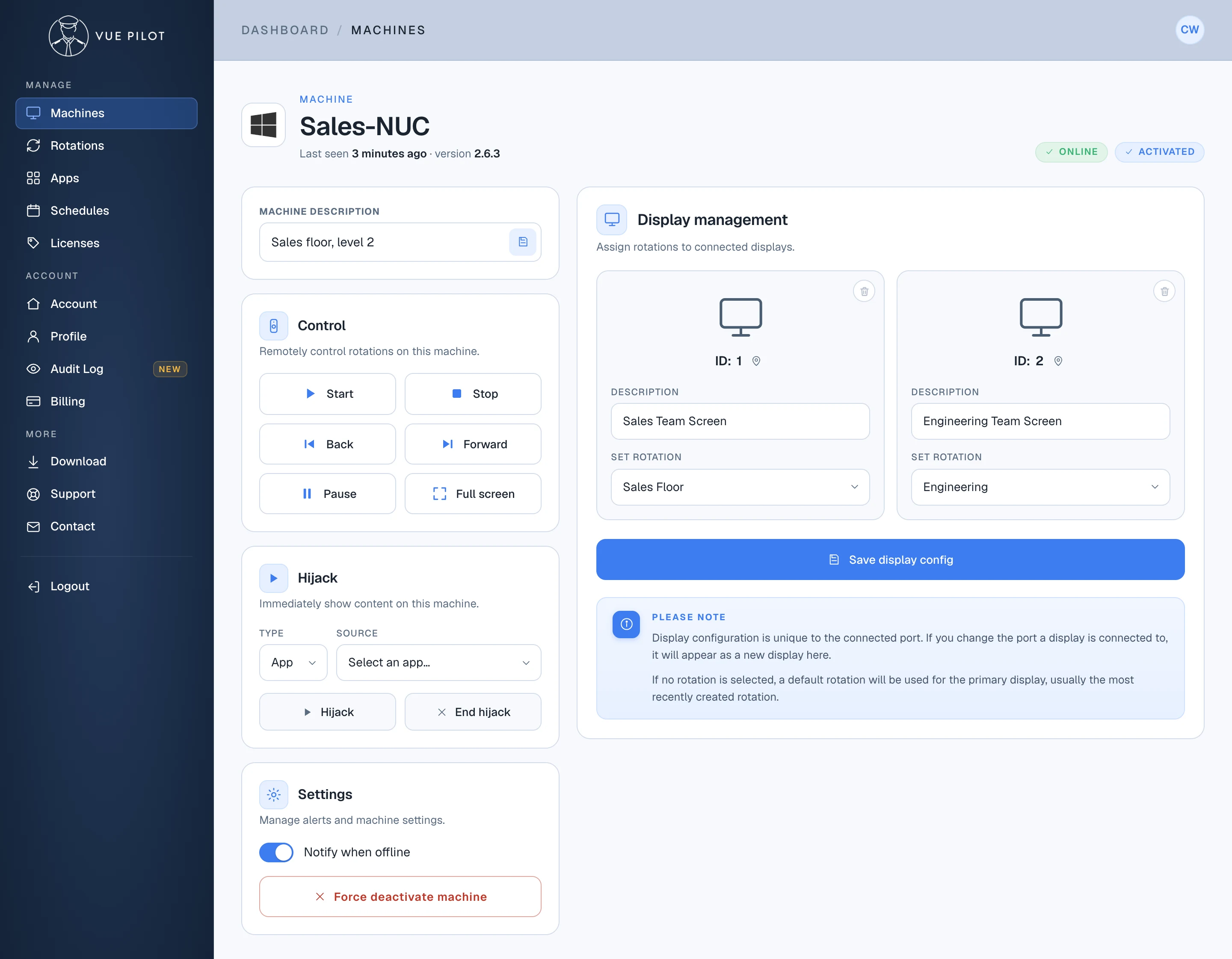
- 1 Online Screens can be changed while the machine is online.
- 2 Sales Team Screen The first screen plays the Sales Floor rotation.
- 3 Engineering Team Screen The second screen, on the same machine, plays the Engineering rotation.
- 4 Save display config Sends the new setup to the machine. Until you save, it shows Reload screen config instead.
Good to know
- If a screen you’ve just connected isn’t listed, click Reload screen config to fetch the latest setup from the machine.
- Each screen is matched to the port it’s plugged into. Move a screen to a different port and it appears as a new display, ready for a rotation.
- Give every screen a rotation. If none is set, the primary screen plays a default rotation, usually the one created most recently.
- The same rotation can play on several screens and machines at once, so there’s only one copy to keep up to date.