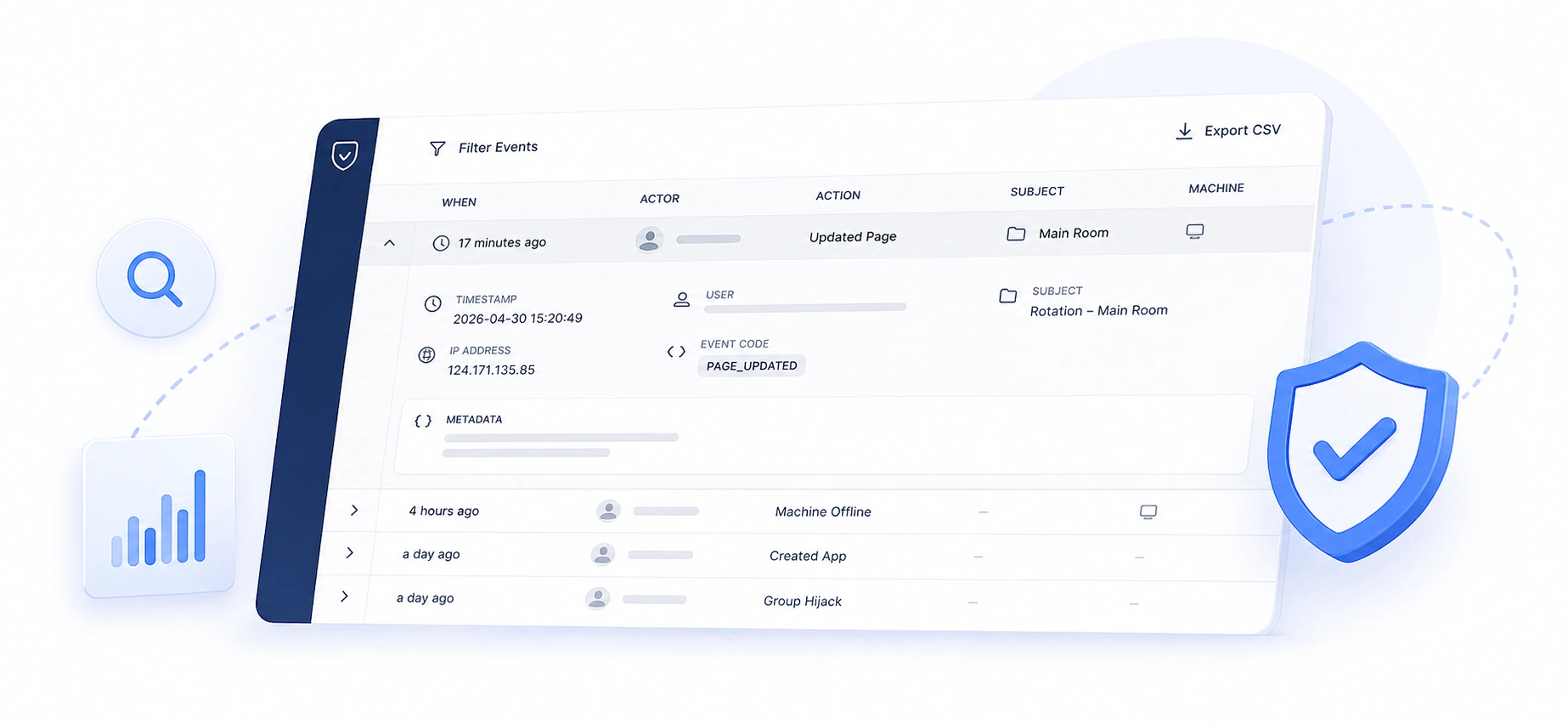
Every action that matters in your VuePilot account is now recorded with audit log events.
Who did it, what they changed, when it happened, and from where. The audit log gives account admins a single, searchable trail of activity across every machine, app, rotation, and user on the account.
What Events Are Tracked
The log captures both content changes and operational events:
Apps
– App created, updated, deleted, copied
Rotations
– Rotation created, updated, deleted
– Pages added, updated, or removed from a rotation
Schedules
– Schedule created, updated, deleted
Machines
– Machine activated and deactivated
– Machine details updated, machine deleted
– Commands sent to a machine (start, stop, pause, fullscreen, reload config, etc.)
– Hijack started or stopped, group hijacks
– Machine groups created, updated, deleted, and group commands
Media
– Media uploaded or deleted
Account
– Account settings updated
– Sub-accounts created or destroyed
– Users invited, permissions changed, users removed
Security
– Two-factor authentication: successful and failed attempts
– License purchases and trial activations
For every event, the log records:
– When it happened (down to the second)
– Who triggered it (the user, or “System” for automated actions)
– What changed (the action and the affected resource)
– Where the request came from (IP address)
– Meta when relevant, e.g. the command name for a remote control action, or the number of machines targeted by a group operation
When something gets deleted, the log still shows the name of the deleted resource, not just an ID. If someone deletes a rotation called “Reception Display“, the audit entry reads “Rotation deleted: Reception Display“, even months later when the underlying record is long gone.
Permission
The Audit Log is visible to account admins only.
Regular account members cannot view or export data. This protects sensitive activity, like who removed which user, or who changed billing settings.
Usage
Click the the “Audit Log” button on the dashboard and see
– A relative timestamp (e.g. “4 hours ago”)
– The actor (the user’s name, or “System”)
– The action (e.g. “Updated App”)
– The subject (the specific app, rotation, machine, etc. that was affected)
– The machine, if applicable
– The IP address the request came from
Click the row to expand it and see the full detail panel including the precise UTC and local timestamps, the user’s email, the resource type and ID, and any extra context captured for that event.
CSV Exports
Click Export to download the current view as a CSV file.
The CSV includes the timestamp, event type, description, user, subject, machine, IP address, and any extra context, ready for spreadsheets, compliance reports, or longer-term archival.
Common Use Cases
Troubleshooting
“Why did the lobby screen stop showing the right rotation last night?“
Filter by machine, look at the last few hours, see who reassigned it.
Accountability for shared accounts
On accounts with multiple admins, the log makes it clear who made each change without anyone having to ask. Less Slack, more clarity.
Compliance & audits
Many organizations need a written record of who changed what and when. Export the relevant date range to CSV and attach it to your audit package.
Security reviews
Filter by the Security category to review two-factor authentication activity, or by Account to see when permissions were granted, revoked, or changed. Failed login attempts and suspicious IPs surface immediately.
Onboarding and training
New team member learning the dashboard? Filter by their user to review what they’ve done so far, useful for catching mistakes early or confirming they’re up to speed.
Post-incident forensics
If a setting somewhere went wrong and you don’t know when, scope to the affected resource via the search box and walk back through every change made to it.
FAQ
How far back does the log go?
Events are retained for 6 months before being erased from the system.
Are deleted items still visible in the log?
Yes. The log captures the name of the affected resource at the moment the event happened, so deletions remain readable. You’ll see “Deleted Rotation: Reception Display” rather than a missing reference.
Can I disable it?
Auditing is on by default for all accounts and isn’t currently configurable.
What is the “system” user?
The system user is for when there is no specific user attached to an event, such as a machine going offline.
What happens when I delete a user?
Their previous actions remain in the log, both the user’s name and their email at the time of the action are preserved.
Deleting a user removes them from the account, not from the historical record.
Does the audit log include API requests made via my API key?
Yes. Anything that goes through the API is recorded the same way as actions taken through the dashboard.