
VuePilot is available for a number of different platforms. The installation is the same for each operating system, simply download and run the installer, just be sure to download the correct version for your platform.
Updating
If you are updating to the latest version of VuePilot you can do so by simply downloading and running the installer again. This will overwrite the old files, but leave the configuration for things like screens and licensing in place.
See the notes below for additional information regarding specific operating systems
Mac OS
MacOS DMG installers are available for Apple Silicon and Intel based Macs.
Windows
Installers are available for 64bit versions of the operating system. Windows 11 has phased out 32bit operating systems and VuePilot has sunset its 32bit Windows builds as of June 2026.
How to tell if you are using 64bit or 32bit Windows
- Click the Start button, then select Settings > System > About
- Open About settings
- At the right, under Device specifications, see System type
Installation Location
VuePilot installs in the AppData folder instead of Program Files primarily to bypass the need for Administrator privileges (UAC prompts) during automatic installation . Users inherently have read/write permissions for their own AppData directory, this allows seamless “just for me” installations and silent, background auto-update mechanisms.
Windows Defender Notification
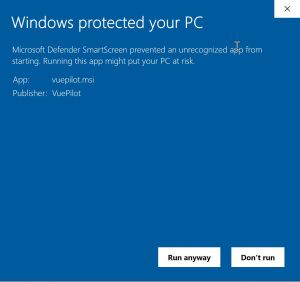
When running the VuePilot installer, you may see a message pop up from Windows defender.
Simply verify that the publisher listed says “VuePilot” and then click “More Info” and then the “Run Anyway” button.
Android TV
If your Android TV device does not have access to the Google Play Store you may contact support and request a direct APK download for side loading onto your device.
Raspberry Pi
Raspberry Pi devices can install the VuePilot software via snap – See https://www.vuepilot.com/support/article/installation-with-snap/